Getting Here
95 Main Street
Durham, NH 03824
United States
How to Reserve a Non-Registrar Owned Classroom
This room is not under the control of the University Registrar's Office. Please contact the department administration for booking availability.
HDMI Connection
- Make sure your device is powered on and awake.
- Connect your device using the supplied HDMI cable.
- If your device requires a display adapter, connect adapter to cable first, then connect adapter to your device.
- If necessary, select your desired source connection on the AV Touch Panel.
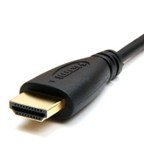
Presenting from a Laptop in a Classroom or Learning Space
- If your device requires a display adapter to connect to the provided HDMI cable, follow these steps:
- Connect the HDMI cable to the display adapter.
- Connect the adapter to your device.
- Make sure your device is powered on and awake.
- Once connected, your laptop display should appear automatically on the classroom system.
- If you need a USB‑C–to‑HDMI adapter, USNH has tested and recommends the Anker 6‑in‑1 USB‑C-to-HDMI Multiport Adapter which is available from Amazon and other retailers.
- Once connected, your laptop display should appear automatically on the classroom system.
Note: If your classroom utilizes a USB-C connection, please connect your laptop directly using the provided USB‑C cable only. Do not use this connection with an adapter, as the USB‑C cable is designed to work with most laptops and adapters can prevent proper display and connectivity.
Select your input source and verify display
- If the system does not start automatically, use the AV touch panel to select the appropriate input source:
- HDMI
- USB‑C
- AirMedia
- After selecting the input, allow the projector or display time to power on. Your computer’s image should appear on the projection screen; this may take up to 60 seconds.
For more information and detailed Windows and Mac troubleshooting, visit the related Knowledge Base Article.
Classroom Laptop Troubleshooting, Tips & LST Assistance
For laptop tips and troubleshooting:
Laptop Troubleshooting Knowledge Base Article
Need assistance or want to schedule a one-on-one AV training session? Call the LST Help Line at Ext. 2525 (603-862-2525) and select menu option #1.

- Technical Writing Lab
- Capacity: 20
- Blu-Ray/DVD Player
- HDMI Connection
- Installed Windows Computer
- Podium Tablet Monitor
- Sound System
- Student HDMI Connection
- Touch Panel Control System
- Touch Panel Lighting Controls
- Video/Data Projector
- Wall Mounted Flat Panel Monitor
- Whiteboard